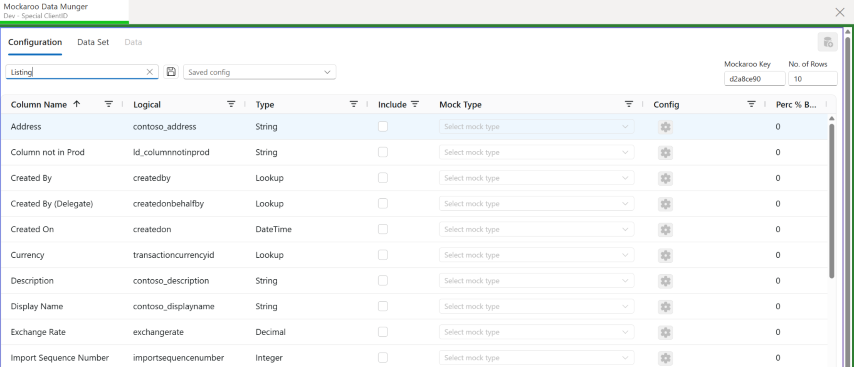
Mockaroo Data Munger helps you create sample data in Dataverse using Mockaroo. Select a table, map Mockaroo data options to its columns, and create the rows you need.
Quick Start
You will need a Mockaroo account and API key. The tool uses your own key to request generated data from Mockaroo. Mockaroo offers a free plan, as well as subscription plans.
- Visit Mockaroo.com and create an account
- Under My Account, generate a new API Key and copy it.
- Load the Mockaroo Data Munger in the PPTB and connect to a dataverse environment
- Enter the key in the top right of the tool under Mockaroo Key. It should save in your local setting.
- Select a table to create data for.
- Select one or more fields to populate and configure the data in the options available in Mockaroo.
- Select Generate Data to dispaly all the data you will be creating against the table
- Hit the Create Data button and all the rows will be created in your system.
Walkthrough
After setting up your Mockaroo key, take these steps to create some data in dataverse
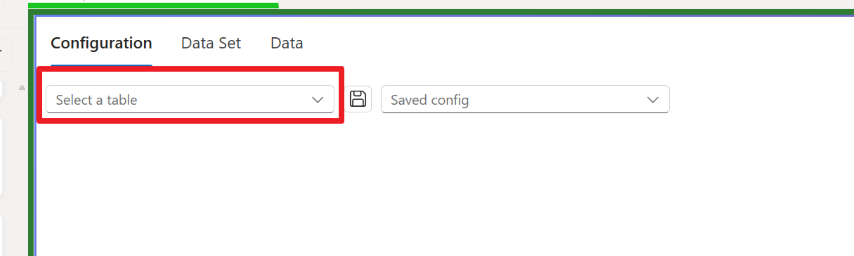
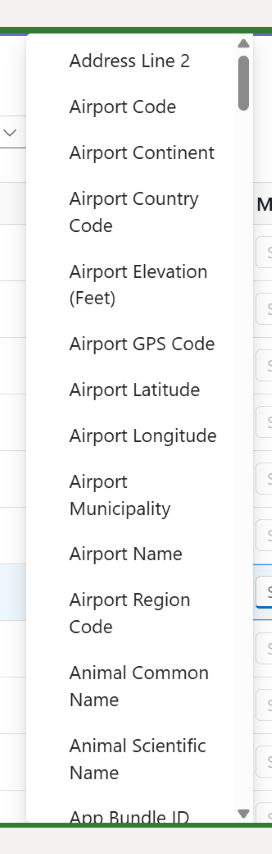
- Select a table in the drop down, you can search by logical or display name.
- You will be presented with the columns in the table and be allowed to add configuration for each.
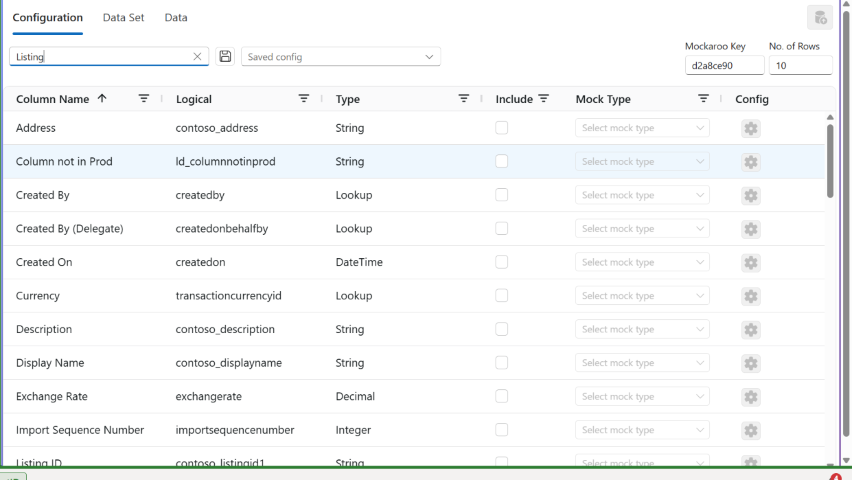
- Select Include for each column you want to create data for and then select the mock option you want.

- Choose the data type you want to use for the selected column. These options relate the options available in Mockaroo.
- Some options have settings to make to configure the date from Mockaroo.

- Select the cog to open an configuration pane.
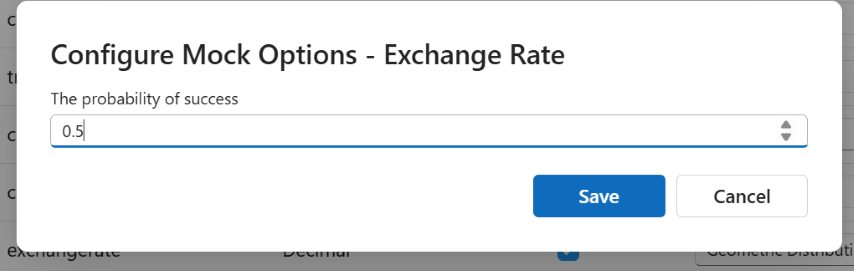
- Once you are happy with the configuration, set the number of rows to return (choose a small number first to check your config) and hit the generate mock data button.
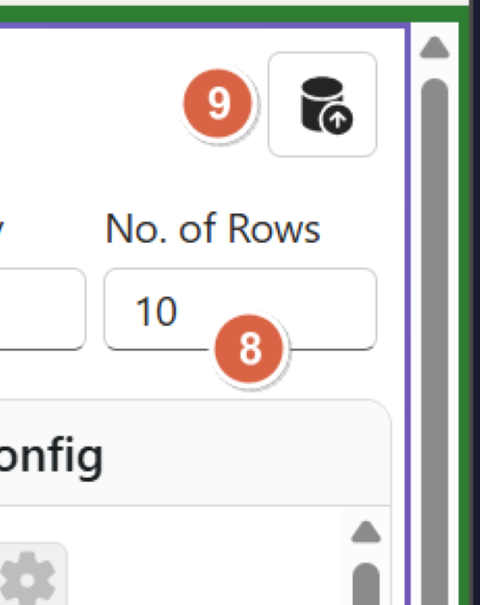
You can go between tabs to update your configuration and repeat the process until you are happy.
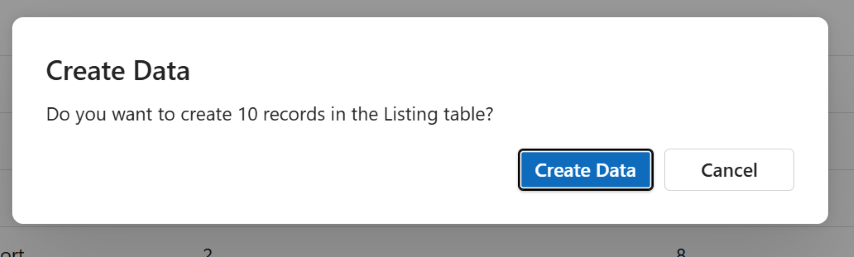
- Once ready, hit Create data in Dataverse button to add the generated rows to Dataverse.

- The confirmation dialog will popup and hitting the Create Data button will do just that!
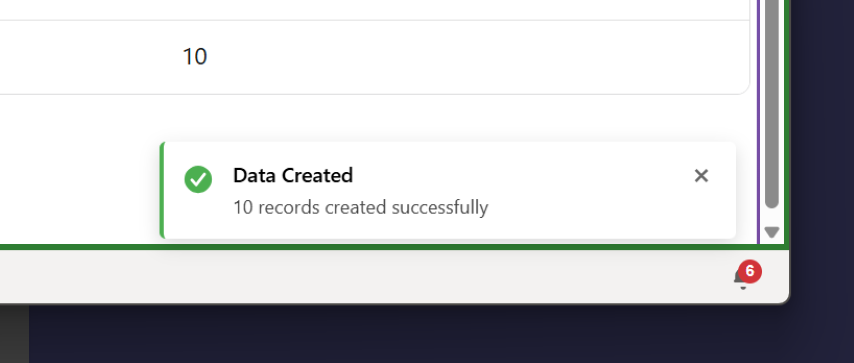
- Once the data has been created, a notification will be displayed.
Saving and retrieving configurations
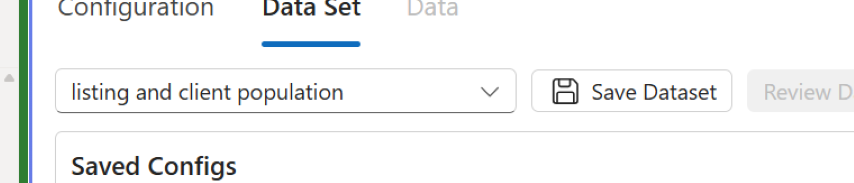
You can enter a name in the saved config drop down and hit the save to save the configuration for reuse or use in a dataset.

Datasets
Datasets allow you to chain multiple configurations after each other, to create a set of data and store this for later usage.
Drag one or more saved configs from the left configs list to the right dataset order.
Re-order the configurations as you need.
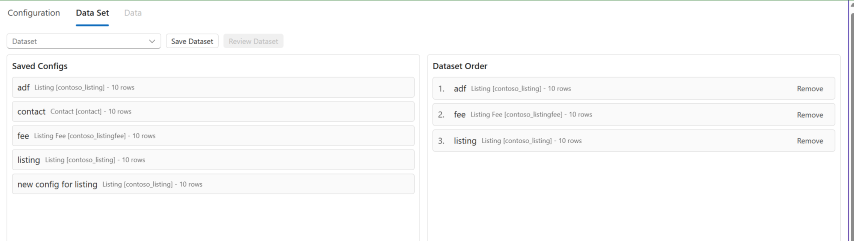
- Once ready, add a name and hit save.
- Select Review Dataset to confirm the data you are going to add.
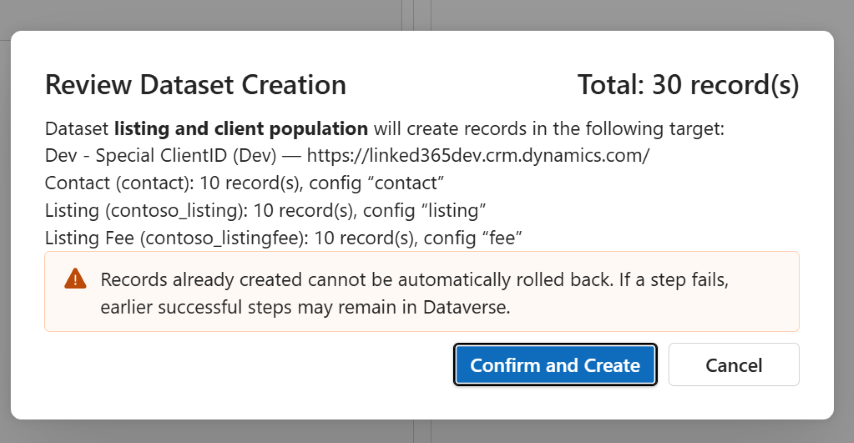
Notifications for each data configuration will appear as the data is cretaed.
Find the source code and project details in the Mockaroo Data Munger GitHub repository. The project is MIT licensed.
This is a separate project from my earlier Mockaroo Data Munger XrmToolBox add-on walkthrough.